SUBSCRIBE


How to Create Matching Product Images with AI
Ever browsed a shop’s product page and noticed every photo looked like it came from the exact same shoot, same light, same backdrop, just a different item in frame? That consistency isn’t an accident. It takes either a very disciplined photographer or, increasingly, an AI image generator built for exactly this job. Dreamina, running on its latest model Seedream 5.0 Pro, happens to be one of the stronger tools for pulling this off without a studio, a lighting rig, or a dozen reshoots.
Image prompt: A row of product bottles lined up on a clean white surface, identical soft studio lighting across each one, minimalist e-commerce photography style, subtle shadow, high detail.
Why Consistency Matters More Than Any Single Photo
One great product shot doesn’t do much on its own. What actually sells is the set – that sense a brand knows exactly what it looks like across every listing, every category page, every ad. Buyers pick up mismatched lighting or clashing backgrounds even when they can’t name what feels off about it. Get the visual language locked in early, and you skip the mess of a catalogue that looks stitched together from five different photographers on five different days.
What “Matching” Actually Means In Practice
Before you start generating, it helps to define what needs to stay consistent across your product line:
- Lighting direction and intensity
- Background color or texture
- Camera angle and framing distance
- Shadow style, whether soft and diffused or sharp and dramatic
Lock these down first. Everything downstream gets easier once you know what you’re matching against.
Meet Dreamina’s Seedream 5.0 Pro
Seedream 5.0 Pro was built with this kind of repeatable, controlled output in mind. Point selection, lasso tools, and sketch guidance let you edit specific parts of an image, like swapping a label or adjusting a shadow, without touching anything else in the frame. Its layer separation splits an image into subject, background, and text layers you can adjust independently, which matters a lot when you’re trying to keep twenty product shots visually aligned. Add 2K output for crisp detail, native text rendering across 14 languages for global listings, and built-in research that keeps visuals aligned with current trends, and you’ve got a model actually suited to catalog-scale work rather than one-off art.
Getting from One Product Photo to a Full Matching Set
Here’s the part that used to take a full-day shoot. Now it’s a repeatable workflow inside Dreamina.
Step 1: Write a Text Prompt and/or Add a Reference Image
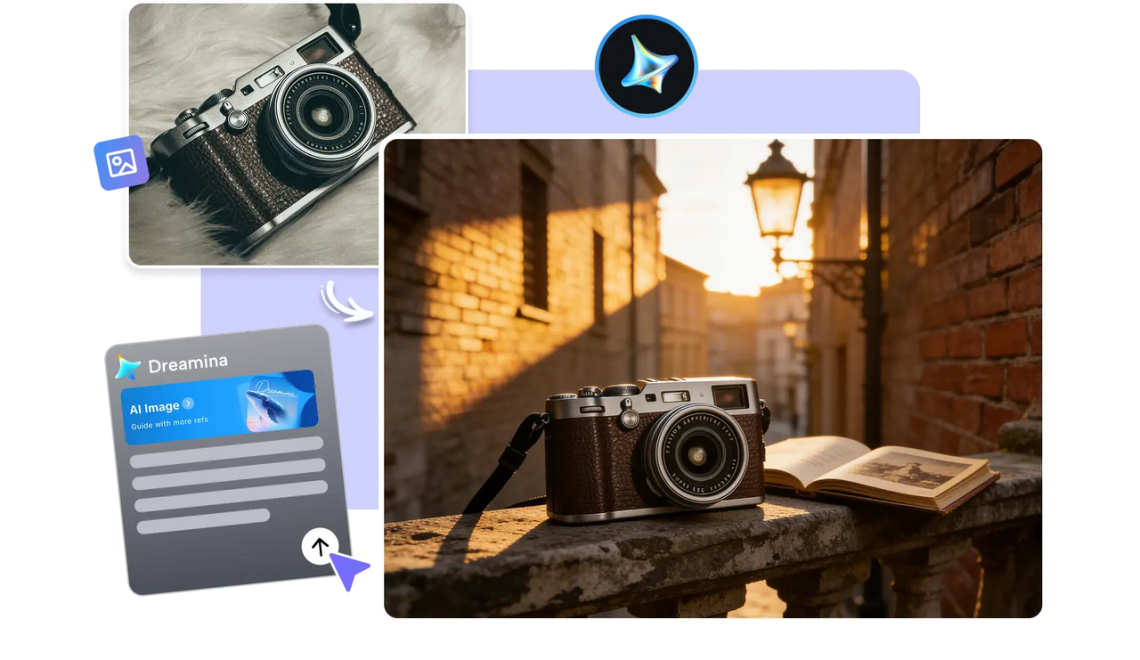
Go to Dreamina and tell them in as much detail as possible what your product looks like — lighting, background, angle, tone, everything. In case you have an existing photograph of your product that you like, submit it as a guide in order for future photos to look similar to it.
Sample prompt: “A skincare bottle shot on a matte white background, soft lighting from above, soft shadow, commercial product photography, composition centred, focus on label.”

Step 2: Adjust Parameters and Generate
Set your model to Image 5.0 Pro by Seedream 5.0 Pro. Choose an aspect ratio and size that fits wherever these images will end up, product page, ad banner, social grid. Pick your resolution next: 1K works for a quick draft, 2K for anything customer-facing. Then click Dreamina’s icon to generate.
Step 3: Customize and Download
Rarely does the first output need nothing. Use inpaint, expand, remove, and retouch to fix small inconsistencies, nudge a shadow, or clean up a background so it matches the rest of your set. Once it looks right, hit “Download” and move on to the next item.
Building a Repeatable Style Across Dozens of Items
Once you’ve nailed one product’s look, the trick is carrying it forward without starting from zero every time. A few habits help here:
- Save your best-performing prompt as a template and swap only the product details.
- Reuse the same reference image across a whole category.
- Keep resolution and aspect ratio locked across the set
This turns what could be hours of trial and error into a formula you repeat with minor tweaks each time a new item joins the lineup.
Common Pitfalls That Break Visual Consistency
A few things quietly wreck an otherwise clean product set:
- Changing lighting direction between shots without meaning to
- Letting background tone drift warmer or cooler across items
- Mixing resolutions within the same catalogue page
None of these ruins a single image. They ruin the set, which is really what buyers notice first.
Where This Approach Pays Off Fastest
Matching product visuals earn their keep in a few specific spots:
- E-commerce catalogues with dozens of SKUs needing the same look
- Seasonal collections that need refreshed shots without a new shoot
- Multi-platform listings where sizing and framing shift by channel
Anywhere consistency compounds across many images; this workflow saves real time.
Wrapping Up
A matched product catalogue used to mean booking a studio and hoping the lighting held steady across every single shot, then hoping the retouching matched too. With Dreamina and Seedream 5.0 Pro, that same consistency comes down to a well-built prompt, a solid reference image, and a few repeatable steps. The result: a catalogue that actually looks like one brand made it. Because it did.
More to Love!
The End of Keyframes? How AI Animation is Changing Motion Design
Using AI to Build Your Boutique Fashion and Beauty Business