SUBSCRIBE


A Practical Guide to Sharper Photos for Everyday Content

Usually, the photos we use for day-to-day content aren’t bad. They’re just rushed. A product photo between orders, a quick team picture, a cafe menu taken right before lunch, a client testimonial on a phone. They look fine on the phone. But put them on your website banner, a shop page, or an Instagram carousel, and you’ll notice how soft they are.
That soft look is incredibly common. Almost every rushed photo ends up a little soft, and that doesn’t mean you need a DSLR or a reshoot to solve it. You can get 80% sharper results with a few simple tweaks.
The sections below break the process into simple, practical steps. Each part helps you get more clarity and detail while keeping the photo looking real — so the end result still looks like the original shot, not something overly edited.
What Makes Daily Content Look Slightly Out of Focus
It is rarely one big mistake. It is a stack of small things.
Phone autofocus locks onto the wrong spot when you move fast. Low indoor light forces the sensor to raise ISO, which smudges fine texture. Files get compressed when sent through WhatsApp or downloaded from Drive, so fine lines turn into blocks. Then you crop to square for a listing, and all of those small issues get magnified.
Before fixing anything, it helps to separate two problems: low resolution and soft detail.
If you try to fix the second without fixing the first, you end up sharpening blur. Fix size and structure first, then clean the light.
First Pass: Add Real Detail Back
A normal resize just makes blurry pixels larger. What you need is a tool that predicts the structure that was lost — the edge of a label, the weave of fabric, the separation between eyelashes.
This is where AI upscaling actually helps. The old way just stretches the pixels, so everything goes soft and blurry. An AI upscaler does it differently.
It looks at the image and rebuilds the missing detail while making it bigger. A product photo may need to fill a wider space on a store page, while a portrait may need extra resolution after a tight crop. Upscaling gives those images more room to work with before the final edits.
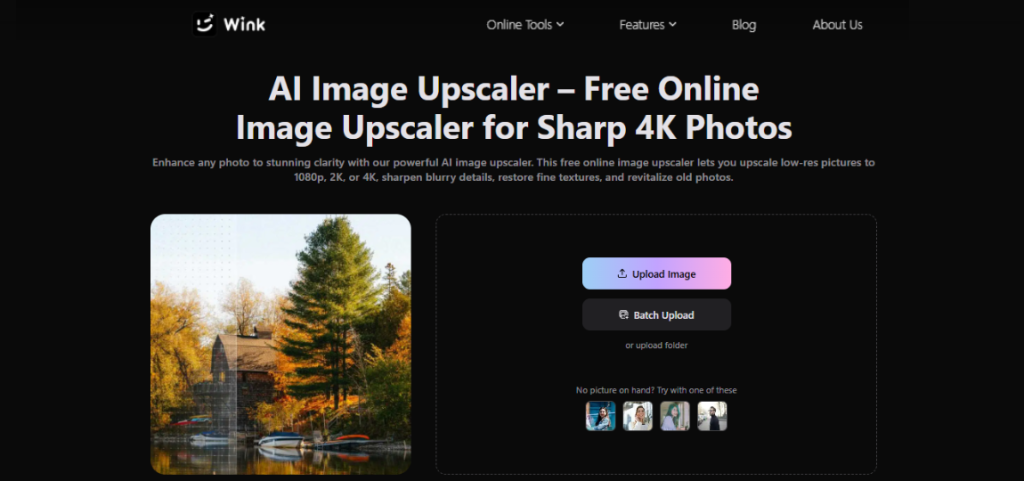
Wink’s free image upscaler can handle this first pass. Open your photo in Wink’s Image upscaler and choose the target size:
- 1080p / 1K — Good for stories, WhatsApp catalog, and small in-page thumbnails
- 2K — Best for Instagram posts/carousels, shop listings, and blog images where detail needs to hold up after cropping
- 4K — Ideal for website banners, hero sections, and printed menus or flyers where the image fills a wide space
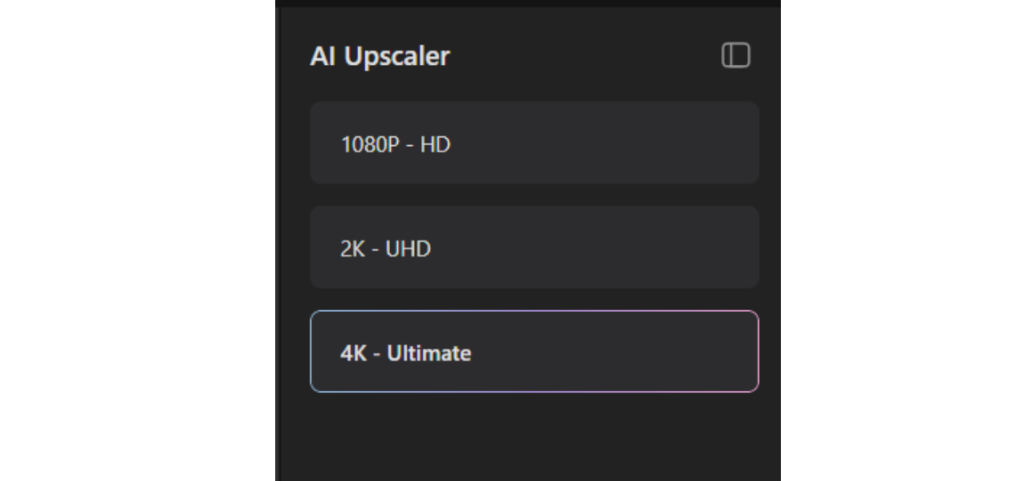
The tool looks at the soft edges and reconstructs them instead of just increasing contrast around them. That means text on packaging becomes readable again, fabric texture comes back, and faces hold up better in a tight crop.
After choosing target size, click Start and check the preview at 100%. Look at the small areas you actually need for content: the product label, the menu price, the logo on a shirt. If those areas look clean but still natural — no halo, no waxy skin — you have a usable base.

Wink also handles batch processing. So, if you have photographed ten items on the same table under the same light, you can run them together with one consistent setting. That alone keeps a feed from looking uneven, where one product is crisp and the next is soft.

Second Pass: Make the Detail Visible
Once the file is large enough, it often still looks flat. Mixed lighting — daylight plus warm ceiling bulbs — leaves white backgrounds gray-yellow. High ISO leaves color speckles in shadows. That veil hides the detail you just rebuilt.
Instead of correcting brightness, contrast, and noise one by one, it is cleaner to correct them together. Wink’s all-in-one restoration analyzes noise, exposure, quality, and color grading at once, so the fix stays balanced and you avoid that patchy look where the face is bright but the background stays dull.
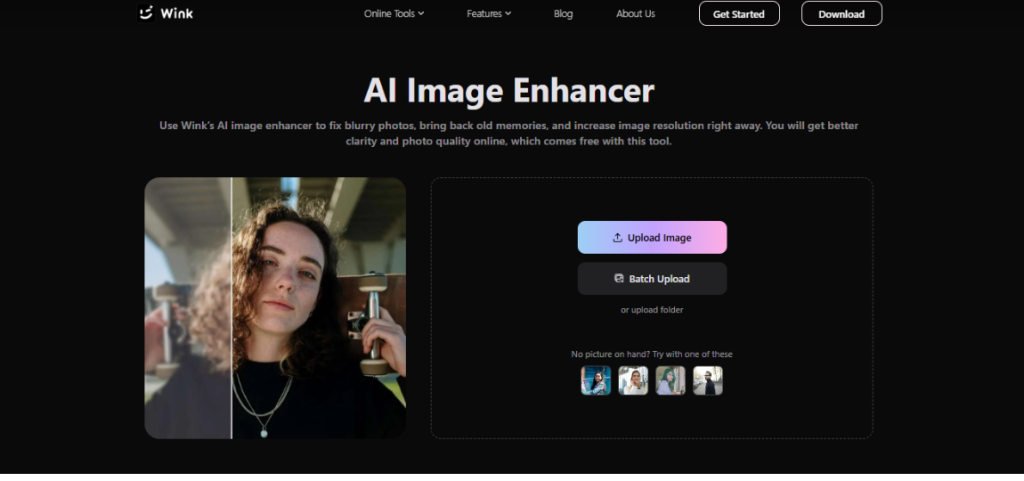
You can handle this step with the ai image enhancer inside the Wink. Drop the upscaled image in, let it detect the issues, and preview the result.
What to check in the preview:
- White and light gray areas become neutral again, not yellow
- Skin tone evens slightly but keeps natural variation, not a flat mask
- Real texture — wood grain, fabric weave, frosting — stays, while random color noise in shadows reduces
- Text edges become solid instead of jagged or glowing

Keep the Workflow Fast Enough to Use Daily
A routine you can repeat in under five minutes:
For one key image that will be pinned or advertised:
Upscale first, then enhance for color and noise, then export two versions — a full-resolution master for archive and a 1350-1600px wide version for web. That web size loads fast and still looks crisp on high-density phone screens.
For a batch of listings shot in one session:
Run batch upscale, then batch enhancement at medium strength. Only open the two hero images for extra fine-tuning. Consistent settings across a batch make a shop page feel more professional than individually over-edited images.
For images recovered from chats or old folders:
Always start with upscaling because compression has already removed data. If the file is completely out of focus with no edge information at all — not just soft, but with zero definition — skip it. No tool can invent a label that was never captured. Save enhanced copies under a new name so the original stays untouched.
The idea isn’t to make every rushed-taken phone photo look like professional studio work. It’s simpler than that. Make it clear enough to read, natural enough to trust, and consistent enough that one soft photo doesn’t pull the whole page down. With that two-step habit — rebuild structure first, then balance light and color — those almost-good shots become assets you can post confidently every day.
More to Love!
Your Camera Roll’s Secret Superpower: Batch-Creating Reels from Old Photos
Tips to Level Up Your Instagram Holiday Photos