SUBSCRIBE


Best Image Upscaler in 2026 – Enlarge Images with AI
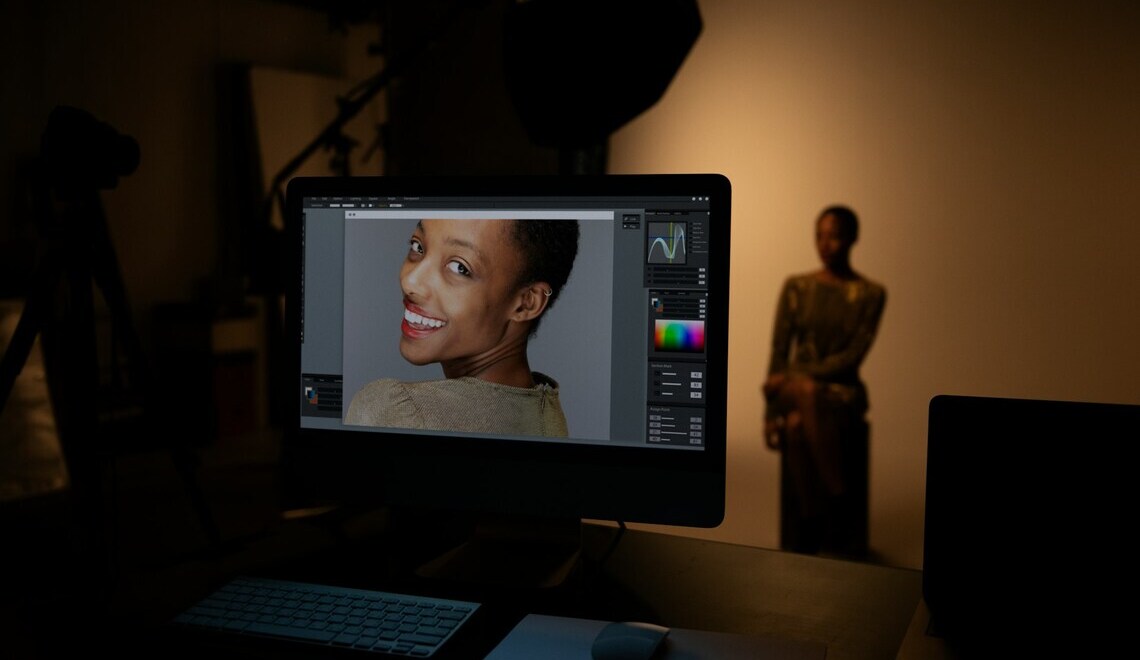
A photo that looks sharp on your camera’s screen can turn soft and blocky the moment you crop it tighter or print it at a size larger than the file was built for. This is the exact problem an image upscaler is meant to solve: adding genuine, believable detail to a photo instead of just stretching the pixels you already have. If you’re comparing your options, it helps to start with best ai driven photo editors for beginners, since an editor that includes upscaling alongside your other adjustments saves you from bouncing between several separate apps just to finish one photo.
Why Photographers Need to Enlarge Images
Enlarging a photo isn’t just about making it bigger for its own sake. It usually comes from a specific, practical need:
- Cropping in tighter after the shot, especially with wildlife, sports, or street photography where you can’t always get physically closer to the subject.
- Printing at a size larger than the original file comfortably supports, such as a poster or gallery print.
- Restoring old scanned prints or early digital camera files that were captured at low resolution.
- Preparing images for large displays, client deliverables, or a portfolio site that expects high-resolution assets.
In each case, the goal is the same: keep the photo looking natural at the new size, rather than soft, pixelated, or artificially sharpened.
What Actually Makes an AI Upscaler Good
Not all upscaling works the same way. Older resizing methods rely on interpolation, filling in new pixels by averaging the ones nearby. That’s why a heavily enlarged photo from a basic resize often looks blurry or slightly waxy, especially around edges and fine textures like hair, fabric, or foliage. AI-based upscaling takes a different approach: it analyzes the image and predicts plausible detail, closer to how a retoucher might reconstruct texture by hand rather than simply making everything bigger. Some desktop editors, including Luminar, apply this kind of detail-focused processing rather than a plain resize filter, which is why results can hold up better at close inspection.
Reconstructing Detail Instead of Just Stretching Pixels
A good upscaler should add texture that looks consistent with the rest of the photo — skin, fabric, and foliage should still look like themselves at the larger size, not smoothed into a flat, plastic-looking surface. If an enlarged photo looks noticeably softer or oddly uniform compared to the original, that’s usually a sign the tool is leaning too hard on smoothing rather than genuine detail reconstruction.
Keeping Noise and Artifacts Under Control
Enlargement tends to amplify whatever is already in the file, including sensor noise and compression artifacts from the original shot. A capable upscaler needs to manage that noise as part of the process, not just make it bigger along with everything else. Watch flat areas like skies or shadows first, since noise and banding usually show up there before anywhere else in the frame.

Batch Processing When You Have Many Files
If you’re preparing a full shoot for print or delivery, upscaling one image at a time isn’t realistic. Batch processing lets you apply the same enlargement settings across a folder of photos, then review the results and adjust individual files as needed rather than repeating the whole process manually for each one.
How to Enlarge a Photo Without Losing Quality
- Start with the best available source file. A RAW file or a high-quality export will always upscale better than a small JPEG that’s already been compressed and resized once. If you have a choice of source files, use the largest, least-processed one available.
- Decide how much enlargement you actually need. Work out the target print size or pixel dimensions first, rather than upscaling further than the final use case requires. Enlarging more than necessary just adds risk of visible softness for no real benefit.
- Apply the upscaling adjustment gradually. Increase the enlargement setting gradually until the result looks natural at your intended viewing distance, rather than pushing straight to the maximum available scale. Desktop applications such as Luminar let you enlarge images directly inside your existing edit, so you can compare the result against your other adjustments before committing to it.
- Check edges and fine detail at full zoom. Zoom in on hair, eyes, text, or fine textures, since these are where artificial-looking detail or smearing tends to show up first.
- Re-balance sharpening and noise reduction. Upscaling can shift how sharpening and noise reduction interact with the image, so it’s worth revisiting both after enlarging rather than assuming your original settings still apply.
- Export at the resolution your output actually needs. Match your export settings to the print size or screen it’s destined for, instead of exporting at the maximum possible resolution by default.
Mistakes That Ruin Enlarged Photos
- Oversharpening after upscaling. Extra sharpening on top of an already-enlarged image often introduces harsh edges and halos rather than genuine clarity.
- Enlarging far beyond what the source supports. Every file has a realistic ceiling; pushing well past it tends to introduce visible softness or repeated-looking texture patterns.
- Skipping noise reduction before upscaling. Noise handled after the fact is harder to fix cleanly, since it’s already been enlarged along with the rest of the image.
- Judging results only at a small preview size. A photo can look fine shrunk down on a screen and still show problems once printed or viewed at full resolution, so always check at 100% zoom or larger before finalizing.
Desktop Upscaling vs. Browser-Based Tools
Browser-based upscalers can be convenient for a single quick image, but they come with trade-offs worth knowing about. Files typically need to be uploaded to a third-party server, which matters if you’re working with client photos or unpublished work. Many free web tools also cap file size, resolution, or the number of images you can process before asking you to pay or wait. Working inside a desktop application keeps your files local and lets you enlarge images as one step within a larger edit, rather than exporting, uploading, downloading, and re-importing just to resize a photo. This is one reason many photographers prefer keeping the full process — RAW edits, retouching, and enlargement — inside a single desktop application such as Luminar, rather than splitting the workflow across several separate sites and tools.
How Different Editors Approach Upscaling
Several established photo editors now include some form of AI-assisted enlargement. Adobe’s tools offer detail-focused enhancement features within Photoshop and Lightroom, Topaz Photo AI is built specifically around upscaling and detail recovery, and other editors take their own approach to the same underlying problem. Results vary by tool and by the specific photo, so it’s worth testing enlargement on a few of your own images before deciding what fits your workflow, rather than relying on marketing claims from any single company, including this one.
Realistic Expectations for AI Upscaling
AI upscaling is genuinely useful, but it isn’t a substitute for a good source file. It can’t reliably recover detail that was never captured in the first place — a badly out-of-focus shot won’t become sharp, and a face that’s a handful of pixels wide in the original frame won’t turn into a print-ready portrait. Extreme enlargement, well beyond what the source file can reasonably support, will usually still show some softness or a slightly synthetic texture up close, even with a strong tool. Treating upscaling as a way to recover reasonable extra size from a decent file, rather than a fix for a fundamentally poor shot, will give you more consistent, realistic results.
Building a Simple Upscaling Habit
The photographers who get the most reliable results tend to follow the same basic order every time: start from the best file available, enlarge only as much as the final use actually requires, check the result at full zoom before trusting it, and adjust sharpening and noise afterward rather than before. Treated that way, upscaling becomes one more predictable step in your editing routine instead of a last-resort fix you reach for only when a photo is already in trouble.
More to Love!
Apply AI-Driven Scene Detection Inside AI Movie Maker Editing Flow
Transforming Your Photos with AI-Powered Sharpening